Loading…
Hum, hiss and echo each need a different fix. An AI background noise remover works best when you match the tool and setting to the sound you hear.
By Priya Shah · Updated
Listen for one of these four sounds first.
Run one tool at a time and listen after each pass.
| Noise | Tool | Setting | Tip |
|---|---|---|---|
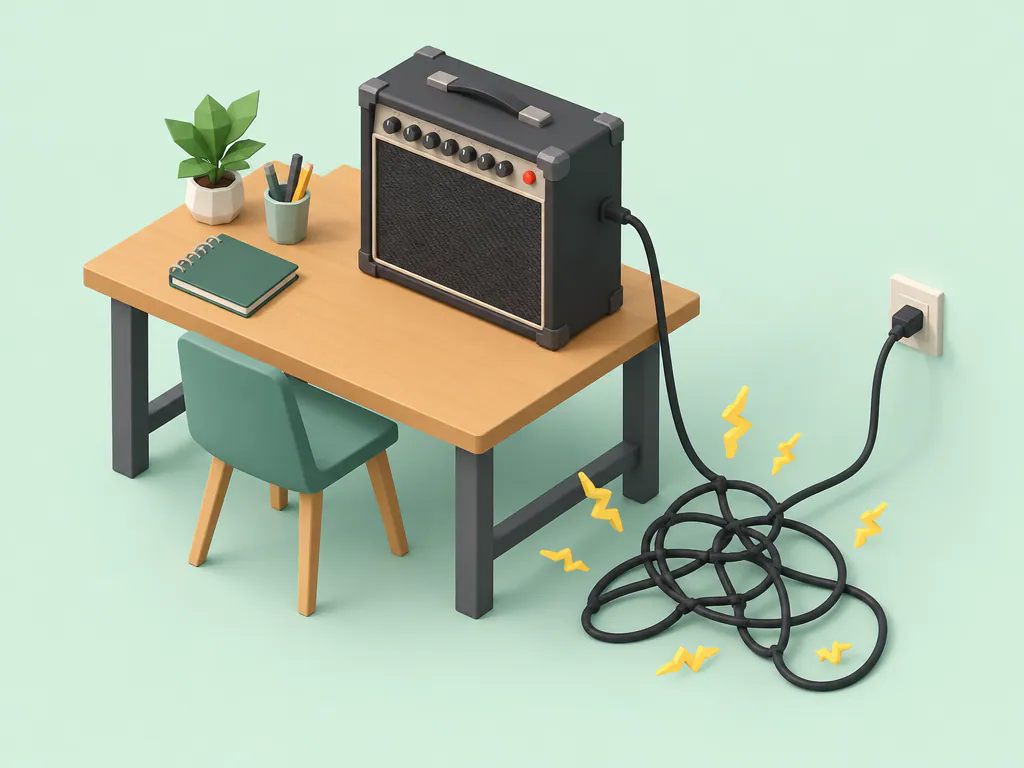
| Hum and buzz | Denoise | Deep clean | Move the mic away from power cables for the next take |
| Hiss | Denoise | Gentle | Raise the mic level a little when you record |
| Fan and air conditioning | Denoise | Gentle, then Deep clean | Turn the fan off for the next take |
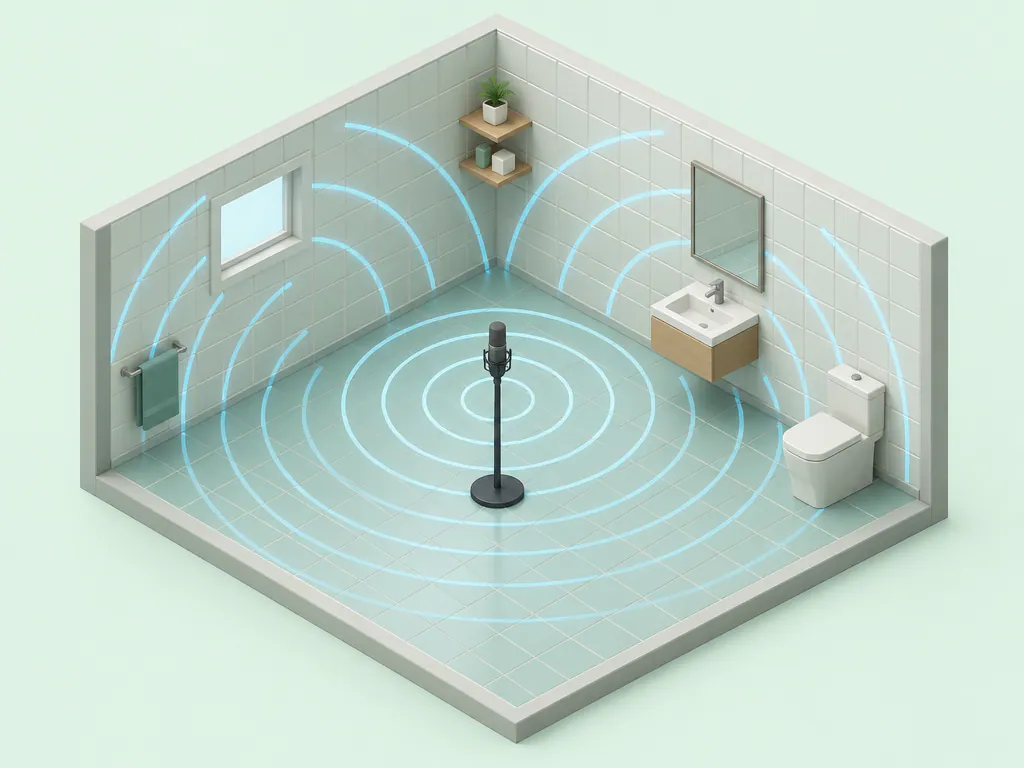
| Room echo | Dereverb | Room recording | Record near curtains, a bed or a sofa |
| Crushed voice messages | Enhance | Vocals only | Ask for the original file when you can |
Each tool runs as a background noise remover online, on a phone or a computer.
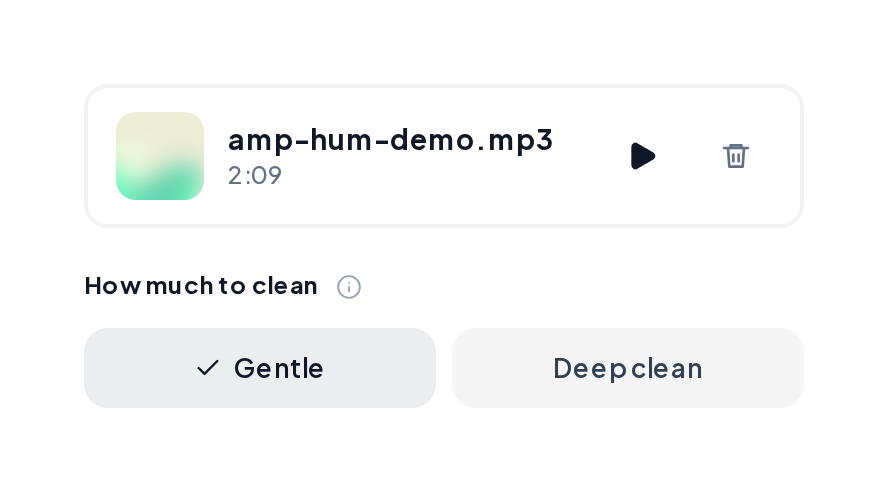
Open Denoise, upload the recording and pick Gentle for light hiss or Deep clean for strong hum.
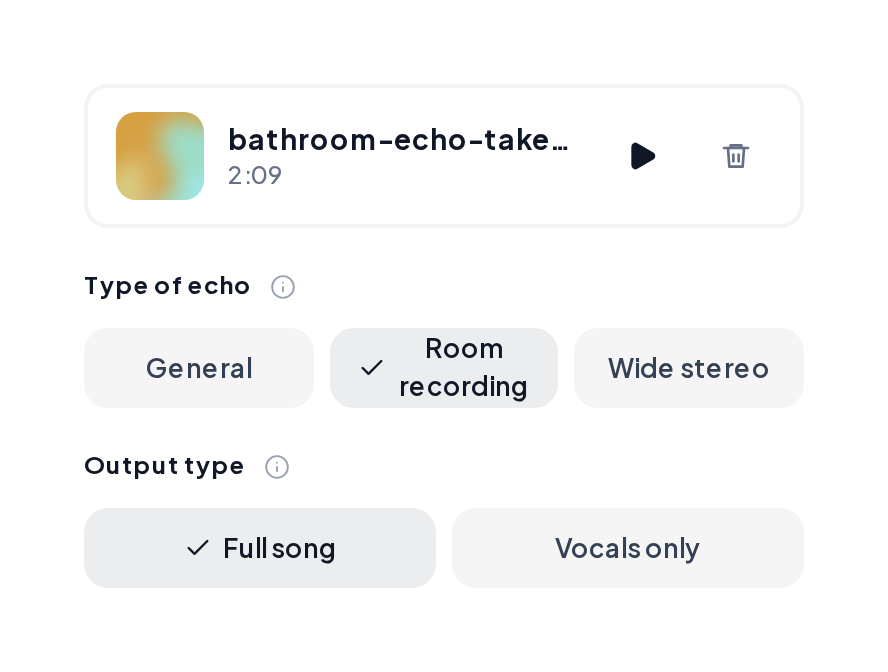
Open Dereverb, upload the recording, pick Room recording as the echo type and keep Full song for the whole mix.
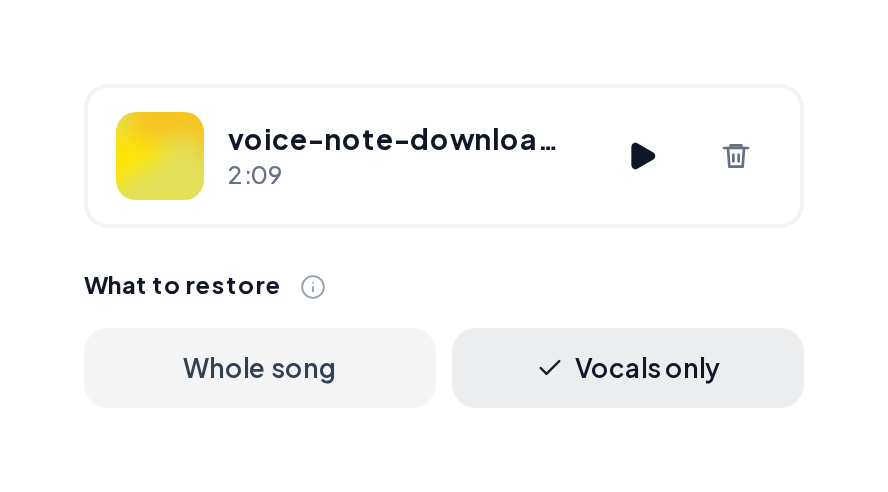
Open Enhance, upload the compressed file and pick Vocals only when the voice matters most.
Pair the cleanup with these tools for a release ready file.
Yes. You can start in your browser and use it as a free background noise remover on your first files.
MP3, WAV, M4A and FLAC, up to 10 minutes per file.
Start with Gentle for light hiss. Pick Deep clean for strong hum or loud steady noise, then compare both.
That is room echo. Run Dereverb with Room recording as the echo type.
Compression damage from messaging apps. Enhance rebuilds the lost highs, especially on files from 32 to 128 kbps.
Yes. Split the vocal with the Stem Splitter, clean it, then place it back over the instrumental.
Name the noise, pick the setting in the background noise remover and hear the difference right away.