Serena
Warm narrator
Voice · Preset

Type what you want to say and hear it spoken. Text to Speech can use a built-in voice, clone a short clip, or follow a voice you describe.
Listen to built-in Text to Speech voices. Open the tool when you want the same read on your own words.
Warm narrator
Voice · Preset
Bright host
Voice · Preset
Clear read
Voice · Preset
Deep storyteller
Voice · Preset
Text to Speech is for voiceover, not singing covers. Use it when you need a clean read from words you already wrote.
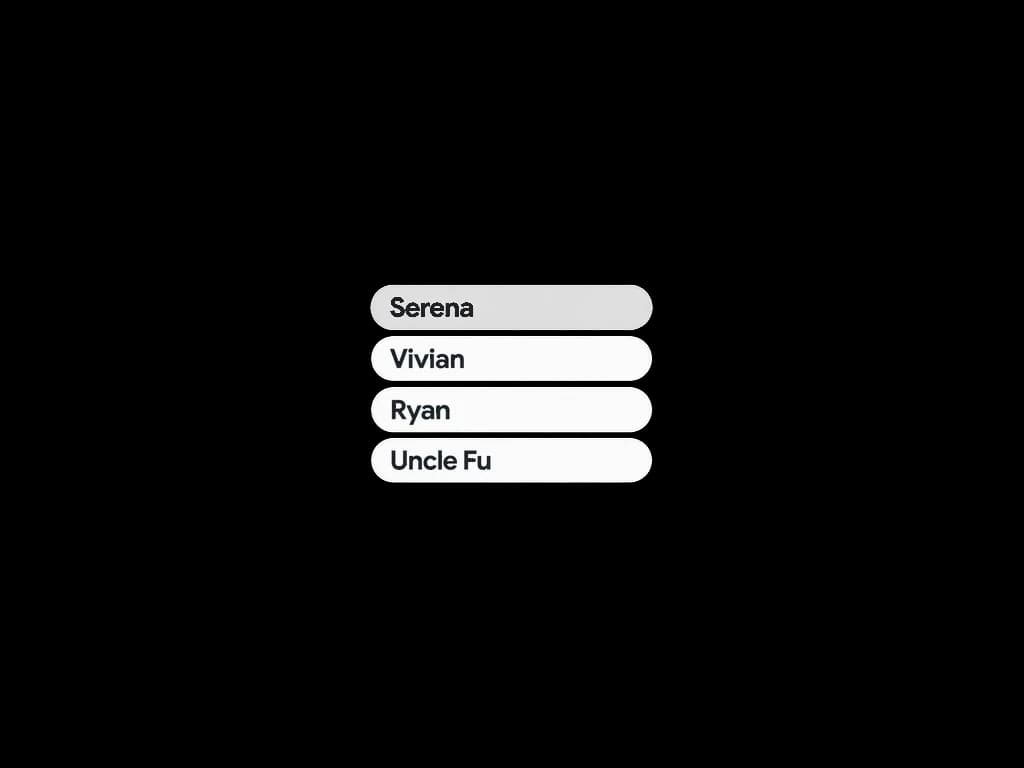
Start with a named voice when you want a fast, consistent read and do not have a reference recording yet.
Upload a sample you have rights to use. Later jobs can reuse that profile so the same voice reads new text.
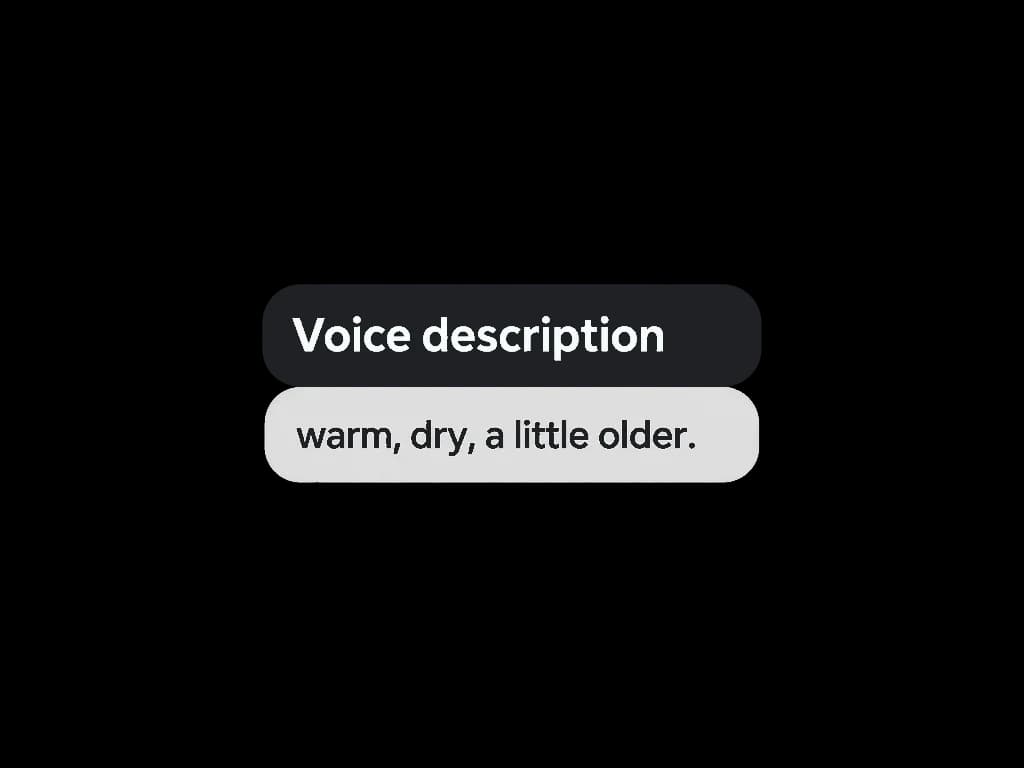
If you do not have a recording, write how it should sound — warm, dry, youthful — and generate from the description.
Stay in the browser. Text to Speech keeps the text, the voice, and the download on one page.
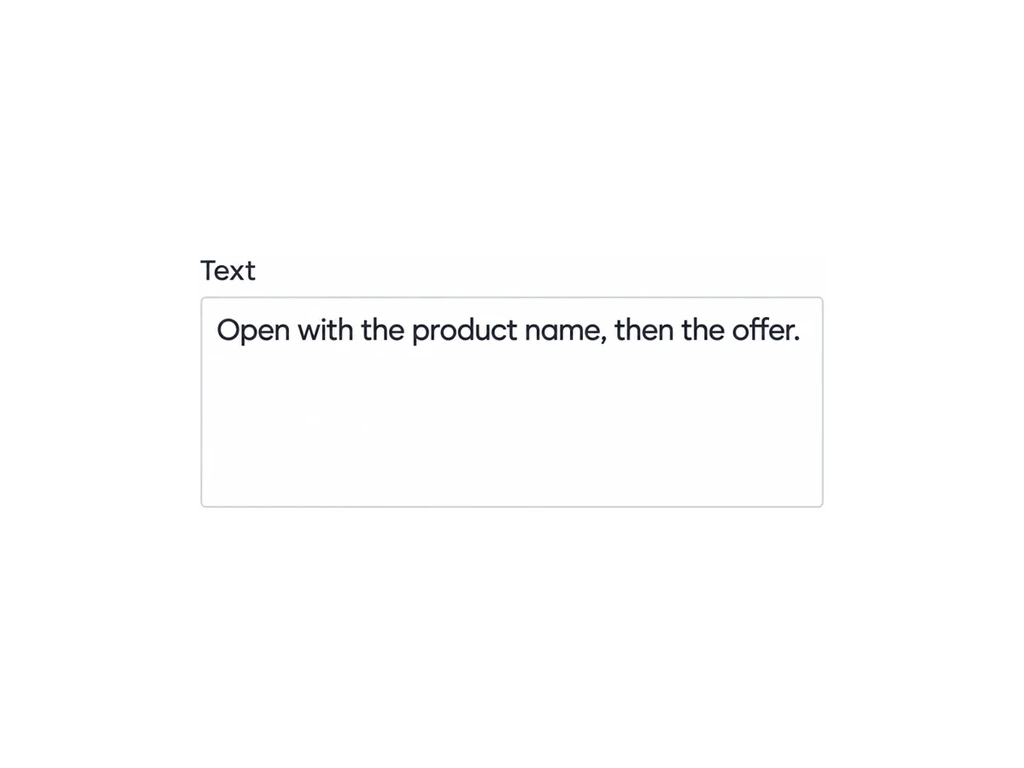
If the words are ready, you do not need a session or a stock VO pack to hear them aloud.
Draft the line, generate a read, then pair it with Jingle Maker when the bed still needs music.
Keep narration in your own clone so every episode sounds like the same host.
Directors and editors can temp a scene with Text to Speech before a talent booking.
 CreatorsTurn captions and lines into voiceover without hunting stock reads.
 MarketersTest several reads of the same line before you book a booth.
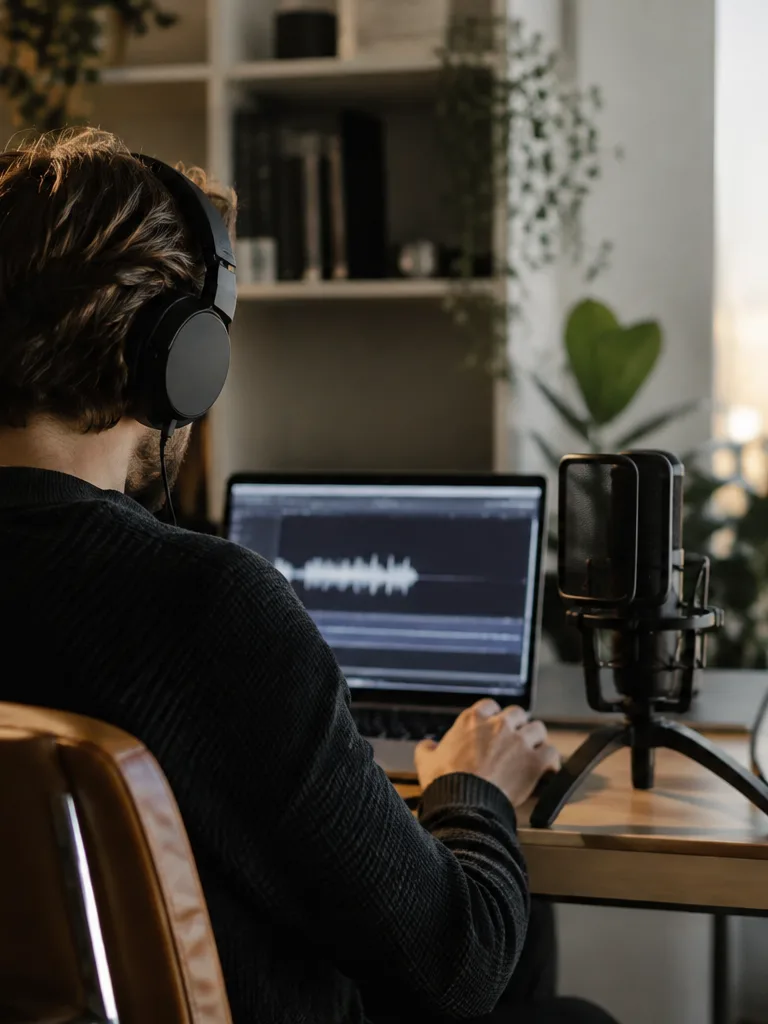 Course makersClone a host once, then generate modules as the outline grows.
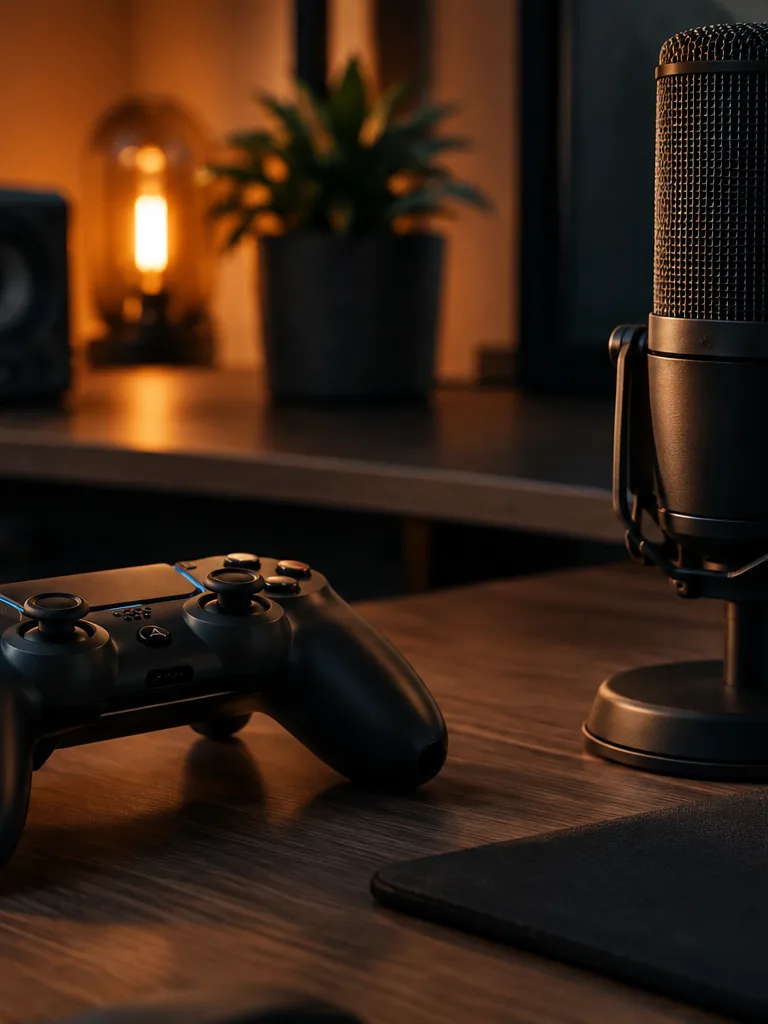 Game and app teamsPrototype dialogue with a designed voice before you hire talent.
Keep going — these tools pair well with what you just read.